Lost or Hacked Wi-Fi Key: How to Reset Your Router and Access
Losing a Wi-Fi key or suspecting an intrusion on your home network requires quick, methodical action. Whether dealing with a forgotten WPA password, a locked router admin interface, or exploitation of the WPS vulnerability, several technical methods allow you to regain immediate control of your network hardware.
This article will also interest you: Lost or forgotten password
This guide details the technical steps to retrieve stored credentials, access your router's administration panel, disable common attack vectors like the WPS pairing button, and permanently secure your wireless communications.
| Error Message / Symptom | Real Cause | Immediate Action | Recovery Rate |
|---|---|---|---|
| Incorrect Wi-Fi key / Connection refused | WPA key changed or forgotten on local device | Extract stored key from system or use Pass Wifi | High (95%) |
| Cannot access 192.168.1.1 or 192.168.0.1 | Modified IP address, IP conflict, or isolated Wi-Fi mode | Connect RJ45 Ethernet cable and check gateway IP via ipconfig | Very High (99%) |
| Unknown devices listed in DHCP leases | WPS flaw exploited or weak WPA2 password brute-forced | Disable WPS, update WPA key, and reset DHCP leases | High (90%) |
| Unknown router admin password | Custom admin login forgotten or reset by third party | Perform a factory Hard Reset using a paperclip (10s Reset button) | Total (100%) |
📋 Table of Contents
- How to Find Your Wi-Fi Security Key on Windows, Mac, and Smartphone?
- How to Change Your Router Admin Password?
- Why You Must Disable WPS and the Association Button Immediately?
- Wi-Fi Security Protocols Comparison Table
- What to Do if Your Wi-Fi Network Is Hacked?
- FAQ: Frequently Asked Questions on Wi-Fi Security & Unlocking
- Key Takeaways: Post-Incident Wi-Fi Security Checklist
How to Find Your Wi-Fi Security Key on Windows, Mac, and Smartphone?
Before launching a full factory reset of your router, you can often extract the Wi-Fi security key directly from a device already connected to the network. Operating systems store these credentials in local system keychains.
Step 1: Retrieve the key on Windows 10 and Windows 11
On Windows, you can display the clear-text password using the Network Control Panel or via the Command Prompt:
- Press Windows + R, type ncpa.cpl and press Enter.
- Right-click your Wi-Fi adapter and select Status.
- Click Wireless Properties, then switch to the Security tab.
- Check the Show characters box. The network key will be displayed immediately.
If you prefer the command-line interface:
- Open Command Prompt (cmd) as Administrator.
- Type the following command to list saved profiles:
netsh wlan show profiles - Display the clear-text key for your target network with:
netsh wlan show profile name="Your_WiFi_Name" key=clear - Check the Key Content line under the Security settings section.
Expert Tip: In lab tests, the netsh wlan command works even when the current user lacks full GUI administrative rights, provided the terminal is launched in elevated mode.Step 2: Extract saved keys on macOS and iOS
On Mac, the Keychain Access application stores all WPA keys:
- Open Finder, go to Applications > Utilities > Keychain Access.
- Search for your Wi-Fi network name (SSID) in the search bar.
- Double-click the network entry and check the Show password box.
- Enter your Mac administrator password to unveil the key.
On iPhone or iPad (iOS 16+): go to Settings > Wi-Fi, tap the (i) info button next to the network, and tap the masked Password field to reveal it via Face ID or Touch ID.
Pass Wifi: Wi-Fi Key Recovery Solution
If you no longer have any connected device or if access to system settings is restricted, Pass Wifi provides an automated alternative. Pass Wifi is an artificial intelligence application certified ISO 9001:2015 & ISO/IEC 27001:2022, simple to use without technical skills, which quickly decrypts the password in plain text on your screen in just a few minutes from a simple username/SSID or associated details, without triggering any security alert notifications on target devices.
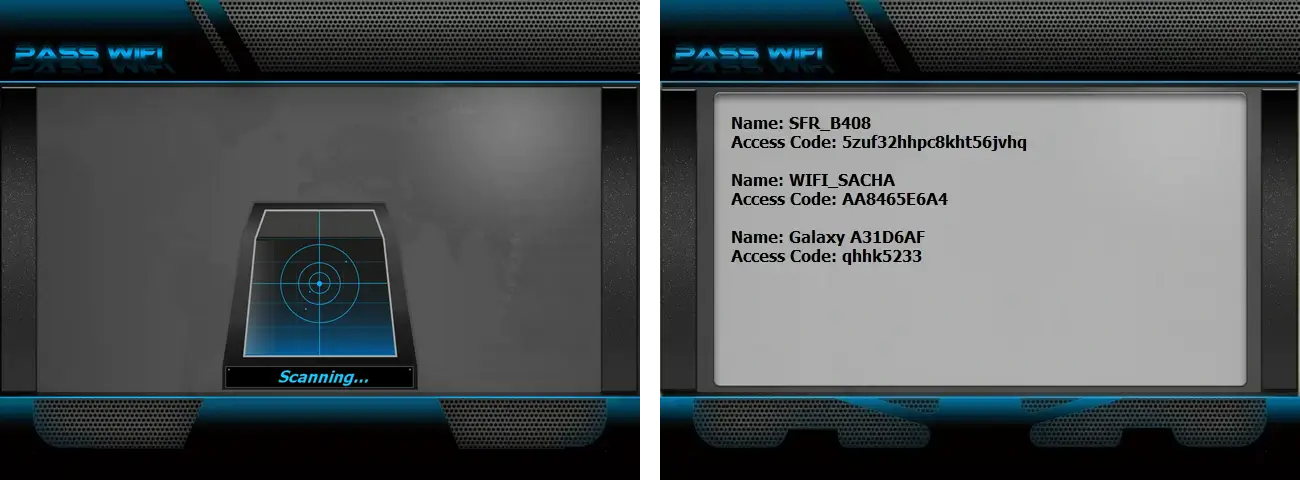
You can download it from the official website: https://www.passwordrevelator.net/en/passwifi
How to Change Your Router Admin Password?
Keeping the default admin password (often printed under the router or set to admin/admin) presents a severe security risk. If an attacker joins your Wi-Fi, they can gain full control over your gateway.
Accessing the router management page
To connect to your router's administration interface (TP-Link, Netgear, Asus, Linksys, or ISP router):
- Open your web browser (Chrome, Firefox, Edge).
- Enter the router's local IP address in the address bar: usually http://192.168.1.1 or http://192.168.0.1.
- To check the exact address on Windows, open Command Prompt and type
ipconfig. Look for the address listed next to Default Gateway.
Updating admin credentials and WPA passphrase
Once logged into the interface:
- Navigate to Administration or System Settings.
- Select Change Admin Password. Choose a strong password containing at least 16 characters (uppercase, lowercase, numbers, and symbols).
- Next, go to the Wi-Fi / Wireless Security section.
- Modify the WPA Passphrase / Key. Select WPA2-Personal (AES) or preferably WPA3-Personal if supported by your devices.
- Save changes. All wireless devices will be disconnected immediately and must authenticate with the new password.
Expert Tip: Never connect over Wi-Fi while reconfiguring your router. Always use a physical RJ45 Ethernet cable to prevent being disconnected mid-process during settings validation.
Why You Must Disable WPS and the Association Button Immediately?
WPS (Wi-Fi Protected Setup) was designed to simplify connections via a physical button or an 8-digit PIN. In practice, the WPS protocol suffers from major architectural flaws exploited by cybercriminals.
Understanding Pixie Dust and WPS PIN Brute-Force
The WPS PIN authentication scheme checks the first half of the PIN (4 digits) separately from the second half (3 digits + 1 checksum). This drastically reduces the total search space from 100 million combinations down to just 11,000 attempts. Automated tools can brute-force a WPS PIN in a matter of hours.
Furthermore, the Pixie Dust attack allows attackers to calculate the WPS PIN offline by analyzing weak random number generators used in common router chipsets (Ralink, Realtek, Broadcom). The actual Wi-Fi passphrase is then exposed instantly regardless of its length.
How to disable WPS in your router panel
To seal this security breach permanently:
- Log in to your router web interface (192.168.1.1).
- Navigate to Wireless > Advanced Setup or WPS Settings.
- Set the Enable WPS toggle to Disabled (Off).
- Disable Push Button Configuration (PBC) if listed separately.
- Save settings and reboot the router's wireless radio.
Wi-Fi Security Protocols Comparison Table
Choosing the right wireless encryption protocol is critical for defending your home or business network against eavesdropping and packet decryption attempts.
| Protocol | Security Level | Encryption Algorithm | Brute-Force Resistance | Recommendation |
|---|---|---|---|---|
| WEP | Deprecated (Critical) | RC4 (Static 64/128-bit key) | None (crackable in under 2 minutes) | Do not use |
| WPA-TKIP | Deprecated (High Risk) | RC4 with Key Mixing | Very Low (known collision vulnerabilities) | Do not use |
| WPA2-Personal (PSK) | Standard (Moderate to Good) | AES / CCMP (128-bit) | Moderate (vulnerable to dictionary attacks if key is weak) | Acceptable with complex key (> 16 chars) |
| WPA3-Personal (SAE) | Very High | AES / SAE (Simultaneous Auth of Equals) | Excellent (protected against offline dictionary attacks & forward secrecy) | Recommended for all modern devices |
| WPA3-Enterprise | Maximal (Enterprise) | AES-GCM 192-bit / 802.1X | Absolute (RADIUS server auth & digital certificates) | Recommended for corporate networks |
What to Do if Your Wi-Fi Network Is Hacked?
If you observe abnormal bandwidth drops or unrecognized devices on your local network, execute an emergency containment procedure immediately.
Step 1: Isolate network and clear sessions
- Disconnect the ISP WAN / Fiber cable to sever internet access while keeping local LAN active.
- Plug your laptop into the router via Ethernet.
- Review the Connected Devices / DHCP Client List in the admin panel. Note down suspicious MAC/IP addresses.
- Revoke all active DHCP leases by restarting the local DHCP service.
Step 2: Perform a Factory Hard Reset
If an intruder has locked you out of the router administration page:
- Locate the physical Reset pinhole on the back or bottom of the router.
- Using a paperclip, press and hold the button for 10 to 15 seconds until all LED indicators flash.
- The router reboots with factory default settings. The default credentials printed on the sticker become valid again.
- Log in immediately via Ethernet to change the admin password and WPA key before reconnecting to the Internet.
Related video:
FAQ: Frequently Asked Questions on Wi-Fi Security & Unlocking
Where can I find the default admin password for my router?
The original admin password is printed on the label sticker located on the back or bottom of your router. On some ISP boxes, the default admin password is equal to the first 8 characters of the default Wi-Fi key or requires pressing the physical pair button to validate initial access.
What if 192.168.1.1 does not respond in my browser?
Check that your device is connected to the router network. Open a terminal and run ping 192.168.1.1. If packets are lost, your gateway might be on 192.168.0.1, 10.0.0.1, or 192.168.8.1. Run ipconfig on Windows or netstat -nr on Mac to verify the exact Default Gateway IP.
Does a factory reset delete firmware updates?
No. A hard reset only clears user configurations (passwords, port forwarding rules, SSID, WPA keys). Updated router firmware remains permanently stored in the device's non-volatile flash memory.
Why does my device keep disconnecting after changing the Wi-Fi key?
This happens when devices attempt to reconnect using cached session tokens or saved old credentials. Go to your device Wi-Fi settings, select Forget This Network, and reconnect from scratch using the new passphrase.
Key Takeaways: Post-Incident Wi-Fi Security Checklist
- Disable WPS Immediately: Turn off WPS PIN and Push Button features in the admin panel to block Pixie Dust exploits.
- Strengthen WPA Passphrase: Set a WPA2-AES or WPA3 password of at least 16-20 characters mixing letters, digits, and symbols.
- Change Admin Login: Replace default router panel passwords (192.168.1.1) to stop unauthorized access over LAN.
- Enable WPA3-Personal: Switch your network mode to WPA3 to benefit from SAE cryptographic protection.
- Factory Reset When Blocked: Hold the physical Reset button for 10 seconds if admin panel access is compromised.